- Figma Plugins
- Figma AI
- Design Workflow
- Accessibility
Best Figma Plugins for Designers in 2026
Install Figma plugins by job—AI drafts, icons, a11y, tokens, prototype, and handoff—with community user counts and clear skip rules.

Sherotree
·10 min read
The best Figma plugins in 2026 are not the longest install list. They are the few tools that remove a weekly job—icons, realistic content, contrast checks, token sync, high-fidelity prototype, or a first-pass code export—without fighting Auto Layout, variables, or Dev Mode.
This guide groups plugins by job, not by hype. It synthesizes what still holds up from recent AI-plugin roundups and broader “top plugins” lists, then anchors popularity claims to Fig Stats community user counts (retrieved November 2026). For free-only contrast, content, export, and color workflows, use the companion piece Free Figma Plugin Workflows by Task. For native canvas AI, Motion, and code layers, see Figma Config 2026.
Key Takeaways
- Start with job coverage, not install count: Iconify (~4.75M users) and Unsplash (~3.80M) dominate assets; Stark, Tokens Studio, and ProtoPie cover checks, systems, and advanced prototype.
- AI plugins (UX Pilot, Relume Ipsum, Autoname) speed first drafts and cleanup; they do not replace your component library or brand rules.
- Structure decides whether design-to-code plugins (Anima, Builder.io) help or create cleanup work.
- Leave Figma for browser checks when you only have hex pairs or need a shareable contrast URL—use Colour Contrast Checker.
How to choose Figma plugins in 2026
Pick plugins the same way you pick components: by frequency of the job and quality of the output.
| Criterion | What “good” looks like |
|---|---|
| Weekly job | You would use it in most sprints, not once a quarter |
| Editable output | Vectors, layers, or tokens you can restyle—not locked bitmaps |
| File health | Works with Auto Layout, components, and variables |
| Trust | Recent Community updates; clear pricing; documented permissions |
| Exit path | You know when to skip it and use Dev Mode, Motion, or a browser tool |
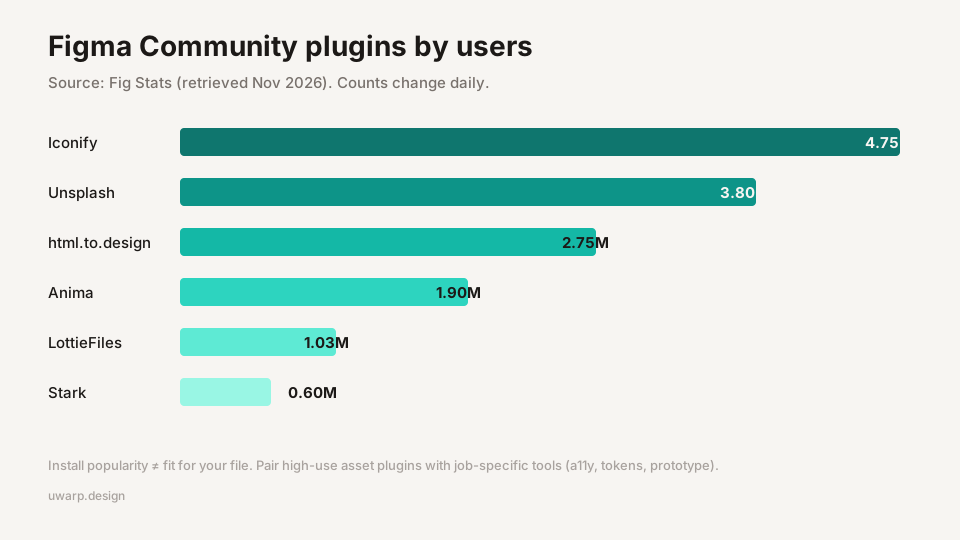
Install popularity is a useful filter, not a verdict. Fig Stats ranks Community plugins by users; as of November 2026, Iconify (~4.75M), Unsplash (~3.80M), and html.to.design (~2.75M) lead the catalog (Fig Stats, retrieved 2026-11-19). Those three solve discovery and import jobs. Accessibility, tokens, and advanced interactions still need smaller, job-specific installs.
Job 1 — AI drafts and cleanup
AI plugins earn a seat when they shorten blank-canvas time or rename chaos. They fail when teams treat the first generation as production UI.
UX Pilot
Best for: Prompt-to-wireframe and early high-fidelity screen drafts inside Figma.
Describe a screen or flow, generate editable frames, then rebuild onto your design system. Treat output as a direction, not a component library. Brand tokens, spacing rules, and content strategy still need a human pass.
Skip if: Your team already has strong templates and the bottleneck is research or engineering, not layout ideation.
Relume Ipsum
Best for: Replacing “Lorem ipsum” with context-aware UI copy.
Useful before critique: headlines, CTAs, and form labels that look like a real product. Keep legal and marketing-approved strings outside Figma.
Skip if: Copy is already locked in a CMS or localization tool.
Figma Autoname
Best for: One-click AI layer renaming while preserving component and instance names.
Autoname’s site reports tens of thousands of designers using the free, open-source plugin (autoname.org). It is a cleanup tool for handoff hygiene, not a design generator.
Skip if: Your file already follows a naming convention enforced by lint plugins.
Job 2 — Icons, photos, and illustrations
Asset plugins win when they keep you on the canvas. License checks still matter before ship.
Iconify
Best for: Searching open-source icon sets and inserting editable SVG.
Iconify is the most-used Community plugin in Fig Stats (~4.75M users). Iconify’s Figma docs describe hundreds of thousands of icons across open sets. Pick one set for a product surface so stroke weight and optical size stay consistent.
Skip if: You need animated icons—use a motion pipeline (LottieFiles or native Motion) instead.
Unsplash
Best for: Filling frames with royalty-free photos without leaving Figma.
~3.80M Community users. Ideal for prototypes and marketing comps. Photos can feel familiar; swap to custom photography before launch when brand tone matters.
Blush, Illustrations, Pictographic
Best for: Fast illustration inserts for empty states, onboarding, and landing comps.
These libraries trade uniqueness for speed. Restyle colors to match tokens when possible; do not ship three illustration styles in one product.
Image Tracer
Best for: Turning simple raster logos or icons into editable vectors on the canvas.
Works best on high-contrast, flat artwork. Complex photos produce messy paths—cleanup time can erase the win.

Job 3 — Realistic content and mockups
Content Reel
Best for: Names, avatars, and paragraph lengths that stress Auto Layout.
Run it on a review frame, not on the production page you hand to engineering. Long German strings and email fields are classic breakers.
Mockuuups Studio
Best for: Dropping screens into device frames for stakeholder decks.
Use after the UI is stable. Device chrome does not fix weak hierarchy.
html.to.design
Best for: Importing a live page into editable layers for redesign or competitive teardown.
~2.75M users on Fig Stats. Great for reverse-engineering spacing and type. Expect cleanup; treat imports as reference, not as your system of record.
Job 4 — Accessibility checks
Stark
Best for: Contrast, vision simulation, and focus-order style checks on the canvas.
Stark is the enterprise-leaning option many teams standardize on (~0.60M users on Fig Stats). Free tiers cover a lot of daily contrast work; team plans add scanners and workflows.
Contrast (and similar free checkers)
Best for: Fast pair checks while you design.
For discovery of accessibility-oriented Community plugins, use the Figma accessibility / contrast plugin hub. When you only have two hex values from Slack or a PDF, leave Figma and use Colour Contrast Checker. Building a full seed-based scale belongs in Accessible Brand Colors.
Skip if: You expect a plugin green check to replace product testing, keyboard passes, or screen-reader review. Contrast is necessary, not sufficient. Deeper WCAG patterns live in the WCAG Color Contrast Guide.
Job 5 — Design systems and tokens
Tokens Studio
Best for: Multi-file design tokens, themes, and sync beyond basic Figma variables.
Use when you need semantic layers (color/spacing/type) that travel across platforms. Pair with variables rather than fighting them.
Design Lint
Best for: Catching layers that ignore shared styles before critique.
A light gate that keeps files readable. It does not invent a system for you—browse mature patterns in Design System Hub while you decide what to tokenize.
Job 6 — Flows, motion, and high-fidelity prototype
Autoflow
Best for: Drawing flow arrows between frames with obstacle-aware paths.
Ideal for early journey maps. Free tiers often cap flow count; upgrade only if diagrams are weekly work.
Wireframe
Best for: Low-fidelity layout kits when you need speed over brand.
Useful in discovery workshops. Replace with system components before visual QA.
LottieFiles
Best for: Browsing and inserting Lottie motion into comps (~1.03M users).
Good for empty states and micro-interactions in presentations. Confirm engineering can ship Lottie (or export to another format) before you design around it. Config 2026 Motion may cover some of this natively—compare with your Config 2026 recap.
ProtoPie (Figma plugin)
Best for: Exporting frames into high-fidelity prototypes with conditions, sensors, and device hardware.
When Figma’s prototype model is not enough (camera, voice, multi-device communication), ProtoPie remains the common bridge: select frames in Figma, export with the ProtoPie plugin, then add conditions and device sensors in ProtoPie.
Job 7 — Design to code and lighter exports
Anima
Best for: React / HTML / Vue exports with CSS, Tailwind, or Styled Components options (~1.90M users).
Worth it when developers will actually refine the export. Auto Layout discipline decides fidelity. Review spacing and component mapping before you call it a sprint win.
Builder.io
Best for: Teams that map Figma components to an existing front-end library.
Strong when design and engineering already share component contracts. Weak when the file is flat frames with one-off styles.
TinyImage Compressor
Best for: Smaller PNG/JPEG exports than default Figma export for web assets.
Use for marketing sites and performance budgets. Keep originals when print or further edit is likely.
Starter stacks by role
| Role | Install these first | Why |
|---|---|---|
| Product / UI | Iconify, Content Reel, Autoflow, Stark | Assets, honest content, flows, checks |
| Design system | Tokens Studio, Design Lint, Stark, Iconify | Tokens, hygiene, a11y, shared icons |
| Marketing / brand | Unsplash, Blush or Illustrations, Mockuuups, LottieFiles | Imagery, mockups, motion comps |
| Design ↔ eng | Anima or Builder.io, TinyImage, Stark | Code head start, weight, a11y |
| Zero-budget week | Iconify, Unsplash, Content Reel, Autoflow (free tier), Contrast | Covers most daily friction |
Aim for six plugins or fewer in daily use. Archive the rest. Overlapping icon packs and three contrast tools create disagreement, not safety.
When to leave Figma (on purpose)
Plugins should not become the only place truth lives.
- Hex-only contrast from Slack → Colour Contrast Checker
- Seed → accessible palette before components exist → Accessible Brand Colors
- Hand-drawn architecture diagrams → Excalidraw (or keep Excalidraw-style sketches in FigJam)
- Native Motion / agent / code layers → prefer shipping Config features over another exporter when they cover the job (Config 2026 recap)
Frequently asked questions
What are the best Figma plugins overall in 2026?
There is no single overall winner. For most product designers, the highest leverage free-or-freemium set is Iconify, Unsplash, Content Reel, Autoflow, and Stark (or a free contrast plugin). Add Tokens Studio if you run a multi-platform system, and ProtoPie or Anima only when prototype depth or code export is a weekly bottleneck.
Are Figma AI plugins worth installing?
Yes for drafting and cleanup—screen ideation (UX Pilot), realistic copy (Relume Ipsum), and layer rename (Autoname). No if you expect them to maintain your design system. Always rebuild AI output onto components and variables before handoff.
Do I still need plugins after Figma Config 2026?
Often fewer, not zero. Motion, agent skills, and code layers absorb some plugin jobs. Community plugins still win for icon search, stock fill, token sync across platforms, Lottie libraries, and specialized prototype engines. Re-evaluate your stack after each major Figma release.
How many Figma plugins should a team allow?
Prefer a written allowlist of 5–10 plugins with owners. Require a Community link, permission review, and a “skip if” note. Ban duplicate categories (two icon browsers, three compressors) unless there is a documented exception.
Where should I verify install counts?
Use Fig Stats for Community user rankings, then open the live Figma Community listing for update date, pricing, and permissions. Counts move daily; treat them as relative signals.
Conclusion
The best Figma plugin list for 2026 is a short stack matched to jobs: AI for drafts, Iconify/Unsplash for assets, Stark for a11y, Tokens Studio for systems, ProtoPie or Lottie when motion needs more than Figma alone, and Anima or Builder.io only when engineering will use the export.
Install for the jobs you do every week. Keep Community links in your team handbook so names stay current. For free task-based paths and browser fallbacks, continue with Free Figma Plugin Workflows by Task. For an older chart-and-asset oriented list, see Top Figma Plugins for Designers.
Enjoyed this story? Share it or follow on Google.